
How Much to Build a Custom Gaming PC: A Complete Guide
A gaming PC budget needs to cover more than the graphics card, and a tower-only estimate is not the same as a ready-to-play setup. How much to build a custom gaming PC depends on the games you play, the performance you want, and what your budget includes.
The graphics processing unit (GPU) renders game images and has a major effect on graphics settings, resolution, and frame rates. Prices in this guide are in U.S. dollars. A tower cost covers the computer alone; a complete gaming setup includes its display and accessories.
You can build with all-new parts, reuse hardware you already own, or consider used components. Those choices affect both the price and the time you spend checking condition and compatibility. The aim is to help you set a budget around your needs, not just pick a number from a parts list.
Key Takeaways
- Budget for the tower separately from the complete gaming setup.
- New-parts prices can change the value of a build quickly.
- Your target resolution and frame rates shape the graphics card choice.
- Memory, storage, the OS, and accessories also affect the final total.
- Check part compatibility before ordering, especially for the motherboard, PSU, and case.
Decide whether your budget means the computer alone or the whole desk setup before comparing any two totals.
How do 2026 gaming PC costs break down by tier?
At October 2026 U.S. prices, a realistic new-parts gaming tower starts near $1,180 with RAM, not $500. New dedicated-GPU parts do not make a feasible $500 gaming PC at current prices; getting near that amount means reusing or buying used hardware.
The table shows five example estimates, including RAM but excluding the OS and peripherals. They help you compare the cost of build gaming performance across broad tiers, though individual card prices can shift the total.
A $500 budget does not cover a competent new 1080p tower with a dedicated graphics card at October 2026 prices.
| Tier | Example graphics card | Included RAM | Estimated PC cost |
|---|---|---|---|
| Budget | Radeon RX 7600 | 16GB | $1,182 |
| Mid-range | GeForce RTX 5060 Ti 8GB | 16GB | $1,452 |
| Mid-range | GeForce RTX 5060 Ti 16GB | 32GB | $2,189 |
| High-end | Radeon RX 9070 XT | 32GB | $2,505 |
| High-end | GeForce RTX 5080 | 32GB | $4,695 |
The budget example shows why a parts subtotal needs context. A listed build comes to $924 before RAM: its CPU is $219, motherboard $139, RX 7600 $339, SSD $82, case $60, 650W MSI MAG A650BN PSU $60, and cooler $25. Its 16GB DDR5-6000 CL36 kit adds $258, bringing the estimate to $1,182.
The RAM price is volatile, so it was excluded from the $924 subtotal. That example is solid for 1080p gaming: the RX 7600 averages well over 60 FPS at 1080p ultra settings. Estimated peak power use is 400-450W, making a 650W PSU a choice with headroom.
The 512GB Patriot P300 PCIe 3.0 SSD lists sequential read and write speeds of 1,700 and 1,200 MBps. One other estimate needs care: the RX 9070 XT build table lists the card at $849, while retailer prices are no less than $1,100. That difference pushes the tower closer to $2,750.
Treat the listed tier as a starting estimate and price the exact memory and graphics card before setting a firm ceiling.
Which components have the biggest effect on price?
In a gaming build, the graphics card usually has the strongest influence on the price and the visual performance you can target. The GPU is often the expensive component, but its value depends on the resolution and settings you use. Choose the graphics card around your games and display, not its name alone.
The CPU handles game logic, background tasks, and instructions that keep the game moving. The GPU, or graphics processing unit, renders the images on screen. A graphics card can cost $339 for an RX 7600 or $1,649 for an RTX 5080 in October 2026 price comparisons.
The CPU and graphics card set the performance budget
Those two components should suit each other and the games you play. A powerful GPU may be wasted if your display cannot show its benefits or your games do not need them. A weaker card can also limit graphics settings and frame rates at a higher resolution.
Competitive games often reward high FPS and steady performance, while visually demanding games can call for more graphics power. Look at benchmarks for the specific games and resolution you care about. That gives you a better basis for choosing hardware than a broad label such as “gaming card.”
Memory and storage can shift the total
RAM holds game data and other active tasks, so capacity can affect smoothness when the system runs short. Memory prices can move sharply, changing the final cost even when the rest of the parts stay the same. Plan RAM as its own budget line rather than treating it as a small add-on.
An SSD stores your OS, games, and files. Larger capacity costs more, but it also means fewer game installs to juggle. Compare SSD capacity and speed, then weigh the amount of storage you will use against the price of adding another drive later.
The board, case, power, and cooling complete the build
The motherboard connects the CPU, RAM, storage, and other hardware. The case must fit the board and graphics card, while the PSU supplies stable power. Cooling includes the CPU cooler and case fans, and each part needs to work with the others.
These parts still matter when their individual prices look modest. A low-cost case with poor space or airflow can make assembly harder. A suitable PSU and cooler help the selected hardware run as intended, so avoid cutting those lines without checking the requirements.
Compare GPU benchmarks at your intended resolution before paying extra for a card that your games or display cannot use well.
How Much to Build a Custom Gaming PC for Your Target?
For Fortnite at 1080p, a $700-$730 RX 7600 build is estimated to deliver 60-80 FPS on medium-high settings in most modes. That is a more useful budget target than the game’s minimum specifications, which describe a playable but not enjoyable tier. Your performance can still change between modes and scenes.
A 2026 configuration pairs an RX 7600, listed at about $220, with a Ryzen 5 5500, listed at about $83. It targets 60-80 FPS in most modes. Those example component prices are specific to that build and may not match every current listing.
A practical 1080p build for 60 FPS
Fortnite’s official minimum specifications name a Core i3-3225, Intel HD 4000 or Radeon Vega 8 graphics, and 8GB RAM. That level can start the game, but it is not a comfortable target for a new gaming PC. The recommended specifications call for a GTX 960 or R9 280 with 2GB VRAM and 16GB RAM.
Those recommended parts target 1080p medium settings at 60 FPS. The newer RX 7600 build costs more, but aims for medium-high settings and 60-80 FPS across most modes. Fortnite needs about 30GB of free storage and Windows 10 64-bit, version 22H2 or later.
A 1080p build aimed at 144 FPS
An estimated $1,000-$1,050 build with an RTX 5060 and Core Ultra 5 225F targets consistent 144 FPS at 1080p with competitive settings. The RTX 5060 starts at $300, and the Core Ultra 5 225F is listed at $139.
Fortnite Performance Mode is recommended for 144 FPS targets and above. It can add an estimated 20-30 FPS to the results, but that gain does not guarantee the target in every mode. Lower visual settings can help prioritize frame rates over detail.
What it takes to target 240 FPS or more
A competitive 1080p build targeting 240 FPS or more is estimated at $1,250-$1,750, depending on its configuration. GPU choices include an RTX 5060 Ti 16GB at about $430 and an RTX 5070 at about $630. The right pick depends on the rest of the system and your settings.
High frame rates can vary with busy scenes and game modes, so treat targets as estimates rather than guarantees. Fortnite Performance Mode may add frames, but results still depend on the match. Set the target from the games and settings you actually use, then allow for performance variation between modes and scenes.
How much does a complete gaming setup cost?
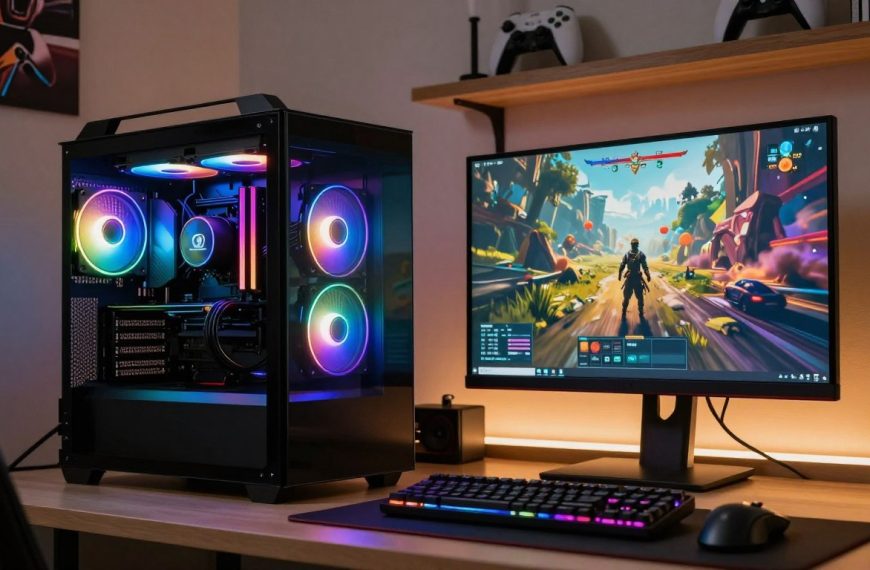
A complete U.S. gaming setup in October 2026 costs about $1,543-$1,645 at the budget end before adding a desk and chair. A complete gaming setup includes the PC, monitor, keyboard, mouse, and headset. Those totals exclude sales tax, shipping, Windows, a desk, and a chair.
The setup price rises with the PC tier and the equipment you choose. If you ask how much a good PC setup for gaming costs, use the ranges below as a starting point for a usable desk setup, not just the tower.
| Setup tier | Included equipment | Estimated total |
|---|---|---|
| Budget | PC, monitor, keyboard, mouse, headset | $1,543-$1,645 |
| Mid-range | PC, monitor, keyboard, mouse, headset | $2,052-$2,989 |
| High-end | PC, monitor, keyboard, mouse, headset | $3,455-$6,671 |
The budget estimate includes a 1080p monitor, along with the listed accessories. The mid-range and high-end estimates use the same broad equipment categories, with costs changing alongside the PC and display choices.
Windows is not included in those estimates. A PC-maker OS allowance is $95-$215. That amount can make a noticeable difference when you compare a parts cart with a prebuilt system that already includes Windows.
When comparing how much a gaming PC and monitor cost, remember that peripherals remain part of the ready-to-play total. A desk and chair are separate purchases, and shipping or sales tax can change the checkout amount.
Add the operating system, delivery, tax, desk, and chair separately if you need a true move-in-ready total.
How much RAM and storage do you need?
For many games, 16GB can still work, while 32GB gives a new mid-range or high-end build more room for multitasking and memory-heavy titles. Capacity matters most when the system runs short; 32GB is a sensible baseline for most new mid-range and higher-end gaming PCs.
Average FPS often changes little between 16GB and 32GB in many games. More memory can still improve smoothness, reduce stutter, and help 1% lows when a game or background task puts pressure on RAM.
Choose memory capacity for the games you play
Star Citizen and Flight Simulator 2024 showed clearer benefits from 32GB than 16GB, especially for minimum frame rates and reduced stutter. That difference matters if you notice uneven motion even when average FPS looks acceptable. The experience depends on the game and what else is running.
META PCs recommends at least 32GB of DDR5 memory and identifies 32GB DDR5-6000 as its 2026 gaming-memory floor. Yet DDR5 pricing changes the value calculation: a 32GB DDR5-6000 kit that cost $80-$120 in mid-2025 was priced at $400-$470 in 2026. Some 64GB kits were above $800.
At those prices, avoid buying extra capacity without a reason. Check the games and tasks you run together, then compare the cost of adding RAM now with the cost of upgrading later. A large kit does not raise average FPS by itself.
Size the SSD for your library
A 1TB Gen 4 NVMe drive is a recommended minimum for a new gaming build, while 2TB is more suitable for many new systems. A larger SSD gives a growing game library more room and reduces how often you need to uninstall titles.
Storage needs depend on the size of your games and how many you keep installed at once. Leave space for the OS and other files, not just the game currently on your screen. You can add another drive later if the motherboard and case support your plan.
Check the capacity requirements of your most demanding games and leave enough SSD space for the library you plan to keep installed.
How do you choose a compatible power supply, motherboard, and cooling?
Check the CPU socket and the graphics card’s power requirements before ordering the motherboard, PSU, or case. Compatibility is a parts-by-parts check, not a guess based on brand names. Confirm sockets, connectors, physical clearance, and cooling support before you buy.
The motherboard must match the CPU platform. For AMD CPUs, the recommended options include AM5 boards with B650, B850, X670, or X870 chipsets. For Intel Core Ultra 200-series CPUs, use an LGA1851 board with a Z890 or B860 chipset.

Match the motherboard to the CPU platform
Start with the CPU socket, then check the board chipset and the memory generation it supports. AMD has committed to supporting the AM5 socket through 2029, which may leave room for a later CPU upgrade. That commitment does not replace a check of each part’s exact support.
Size the PSU for the graphics card
A PSU needs enough wattage and the right connectors for the chosen GPU and other components. META PCs recommends a quality 80+ Gold PSU. Its examples list 650W for an RTX 5060 Ti or RX 9060 XT build, 750W-850W for an RX 9070 XT or RTX 5070 Ti build, and 850W for an RTX 5080 build.
An RTX 5090 build calls for at least 1000W in that guidance. 80 PLUS ratings measure efficiency, not overall quality or gaming performance. The scale includes Standard, Bronze, Silver, Gold, Platinum, Titanium, and Ruby; Platinum is not the highest tier.
Check case clearance and cooling support
Compare the graphics card’s length with the case’s stated clearance. Some current RTX 5090 versions are more than 400mm long, so a card can exceed the space available in some cases. Check the exact model, not only the GPU family.
Make sure the CPU cooler supports the socket and fits inside the case. Check room for the cooler, graphics card, and case fans at the same time. Airflow also matters: intake and exhaust fans need clear paths rather than cables or parts blocking them.
- CPU socket and chipset match the processor.
- Memory generation matches the motherboard.
- PSU wattage and connectors suit the graphics card and system.
- GPU length fits the case’s listed clearance.
- Cooler mounting, cooler height, and case airflow fit the build.
Confirm the exact GPU length against the case specification and keep PSU headroom for the selected components.
What parts do you need, and how do you build a gaming PC?
A DIY gaming tower needs eight core component categories, and a first build typically takes about 4-8 hours including setup. Gather every part before assembly, then check fit and support across the complete list. The standard categories are CPU, motherboard, graphics, RAM, storage, case, PSU, and cooling.
A custom PC builder or compatibility checker can flag fit and support issues. It is a helpful tool, not a guarantee that every choice is right. A build-your-own gaming PC kit is not required; you can choose parts one at a time.
- CPU and motherboard: select a matched processor and board.
- GPU or suitable integrated graphics: choose graphics for your games.
- RAM: match the capacity and memory type to the board.
- SSD: choose enough storage for the OS and game library.
- Case and fans: allow space for the board, GPU, and cooling.
- PSU and cooler: check power needs and CPU support.
To build a gaming PC, first check compatibility across the parts list. Assemble the board and components carefully, then place them in the case. Connect power and storage before starting the system for the first time.
Enter BIOS, the motherboard’s setup screen, and configure memory using its supported profile. Install the OS and drivers, then test the system before relying on it for games. A PC-building kit may simplify shopping, but no kit replaces checking the hardware specifications.
Online tools can help you compare parts and spot common conflicts. They may not catch every detail, such as the exact GPU length or a specific connector. Use the motherboard, case, and PSU specifications as your final check.
Before assembly, compare the complete parts list against the motherboard, case, and PSU specifications.
How can you save money without sacrificing useful performance?
The safest savings come from reusing compatible parts and skipping upgrades that do not improve your games or workload. Spend on what you will use, not on a higher label by default. Never count a reused part as a saving until you confirm it works with the new system.
Parts from an older computer can lower the budget, but compatibility still sets the limits. DDR4 memory, for example, can only be reused with a compatible DDR4 platform. Check the condition, return terms, and warranty before you buy used hardware.
- Reuse compatible parts, such as a case or storage drive that still meets your needs.
- Compare sales and non-flashy components with the same useful features.
- Consider a carefully checked used part with clear return terms.
- Upgrade in phases, replacing the part that limits your games first.
Simple components can be good value when they meet the build’s needs. A plain case, for example, may make more sense than paying extra for lighting you do not want. Compare performance and support, not just the look of the hardware.
Streaming does not require paid software. OBS Studio is free and open source, so you can keep software costs down while you test your setup. Leave room in the budget for hardware that affects the experience you care about.
Check the condition and return terms of any used part before counting its discount as real savings.
Is building a PC cheaper than buying one?
Building yourself usually costs less when you find well-priced parts and are comfortable handling assembly and troubleshooting. The savings usually come from avoiding assembly labor. A sale-priced prebuilt can still compete once Windows, assembly, and support are included.
DIY also gives you direct control over part selection. You can decide where to spend and avoid components that do not suit your games. The trade-off is that warranties are handled separately for individual parts, and you take responsibility for troubleshooting the build.

A prebuilt system may offer system-level support, which can be useful if one problem affects several parts. Check what the support covers and how long it lasts. A low sticker price does not show whether the computer includes the parts you want.
Compare equivalent components, including the CPU, GPU, memory, storage, and PSU. Check whether Windows 11 and assembly are included when you compare a prebuilt with a DIY parts cart. Also compare warranty coverage, not just the initial price.
A strong sale can make the prebuilt option a better deal, especially if you value convenience or do not want to spend time on assembly. DIY usually has the cost edge when the parts are well-priced, but the full system total decides the better buy.
Compare the final DIY cart with a prebuilt that includes equivalent hardware, Windows 11, assembly, and warranty support.
What should your final PC budget include?
A monitor and basic peripherals can add several hundred dollars to a tower budget, so check the full cart before ordering. Display prices depend on resolution and panel type, and basic accessories add another line. Use monitor prices as benchmarks, then compare current listings before you settle on a total.
December 2025 U.S. monitor benchmarks list 1080p displays at about $200-$250, 1440p at $300-$350, and 4K or OLED at $500-$1,300. These are price floors to compare against current listings, not fixed quotes for every display.
| Display category | Monitor price benchmark | What the price covers |
|---|---|---|
| 1080p | $200-$250 | 1080p display price floor |
| 1440p | $300-$350 | 1440p display price floor |
| 4K or OLED | $500-$1,300 | 4K or OLED display price floor |
A U.S. budget-gear roundup dated August 11, 2026, found a keyboard, wireless mouse, and wireless headset for about $161 together at deal prices, or about $213 at list price. That bundle is a useful accessory benchmark, though your preferred features can change the cost.
Use this final-cart checklist before checkout:
- Parts: confirm the chosen parts and quantities in the cart.
- OS: include the operating system if it is not already covered.
- Monitor and peripherals: add the display, keyboard, mouse, and headset you need.
- Tax and shipping: include the charges shown at checkout.
- Exact fit and connectors: check GPU clearance, cooler space, PSU plugs, and board support.
Check the full cart, not only the tower subtotal; the display, accessories, tax, and shipping can change what you spend.
Recheck current listings and the final total, including any costs left outside the PC parts cart.
Conclusion
A sensible gaming PC budget starts with the games and display you want, then covers every part and setup cost needed to use them. Your target resolution affects the hardware you need, while the monitor and accessories determine whether your tower estimate reflects a usable setup.
Keep the budget tied to the gaming performance you will notice. Extra capacity or features are worth paying for when they serve your games, work, or plans to upgrade. They are less useful when they sit unused.
Build a compatible cart for your target resolution and confirm its complete total before you decide to buy or assemble.
FAQ
How much does it cost to build a high quality gaming PC?
A high-quality gaming tower costs about $1,452-$2,189 in the mid-range, or $2,505-$4,695 at the high end, at October 2026 U.S. estimates. Those amounts include RAM but exclude the OS and peripherals. The range reflects different graphics cards and memory configurations, so compare the exact parts in a cart rather than relying on a tier name alone.
Is 32 GB RAM overkill gaming?
No, 32GB is not overkill for a new mid-range or high-end gaming PC, though 16GB still works for many games. Extra memory can improve smoothness and 1% lows when a game or background task puts pressure on RAM. Average FPS often changes little in games that do not need more memory, so choose capacity around your titles and multitasking.
Can a $500 PC run Fortnite?
Yes, a $500 PC may run Fortnite if you use used or reused parts, but a new dedicated-GPU tower is not feasible at that budget at October 2026 prices. A new RX 7600 and Ryzen 5 5500 build is estimated at $700-$730 and targets 60-80 FPS at 1080p medium-high settings in most modes. Results can vary by scene and mode.
Is it cheaper to build my own gaming PC?
DIY often costs less when you find well-priced parts because you avoid assembly labor and choose each component yourself. A sale-priced prebuilt can be competitive once Windows, assembly, and warranty support are included. Compare equivalent hardware and warranty coverage, not just the price tag. Building also means handling setup and troubleshooting, while support varies by system and seller.
How much does a full PC setup for gaming cost?
At October 2026 U.S. estimates, a complete gaming setup costs $1,543-$1,645 at the budget end, $2,052-$2,989 in the mid-range, and $3,455-$6,671 at the high end. Each estimate covers the PC, monitor, keyboard, mouse, and headset. The ranges are before adding a desk and chair, and exclude sales tax, shipping, and Windows.

 By
By
 By
By