
Do You Need a Gaming Monitor for a Gaming PC: A Complete Guide
A gaming PC needs a display to show its games, but it does not require a screen labeled for gaming. Your choice depends on the games you play, what your PC can deliver, and whether you already have a TV or standard screen available. The display affects how gameplay looks and feels, but paying for premium features only makes sense when they improve your actual gaming experience.
This comparison focuses on practical differences, from motion and resolution to everyday use. You can use it to judge whether your current screen is holding back your graphics or whether an upgrade would make little difference. The goal is a display that suits your setup, not the most expensive option on a shelf.
Key Takeaways
- A desktop gaming PC needs a connected display for visible local gameplay.
- A standard monitor or TV can display games when compatible with the PC.
- Refresh rate affects visible smoothness, not the PC’s frame rate.
- Choose resolution with your GPU’s performance in mind.
- A gaming-focused display is useful when its features solve a real need.
- A standard monitor or TV can be enough when its performance matches the games and hardware.
Do You Need a Gaming Monitor for a Gaming PC?
You need a display to see games from a desktop PC, but that display can be a standard monitor or a TV instead of a gaming monitor. The PC runs the game, while its CPU and GPU process instructions and graphics. A connected display is necessary for visible local gameplay, but a gaming monitor is optional.
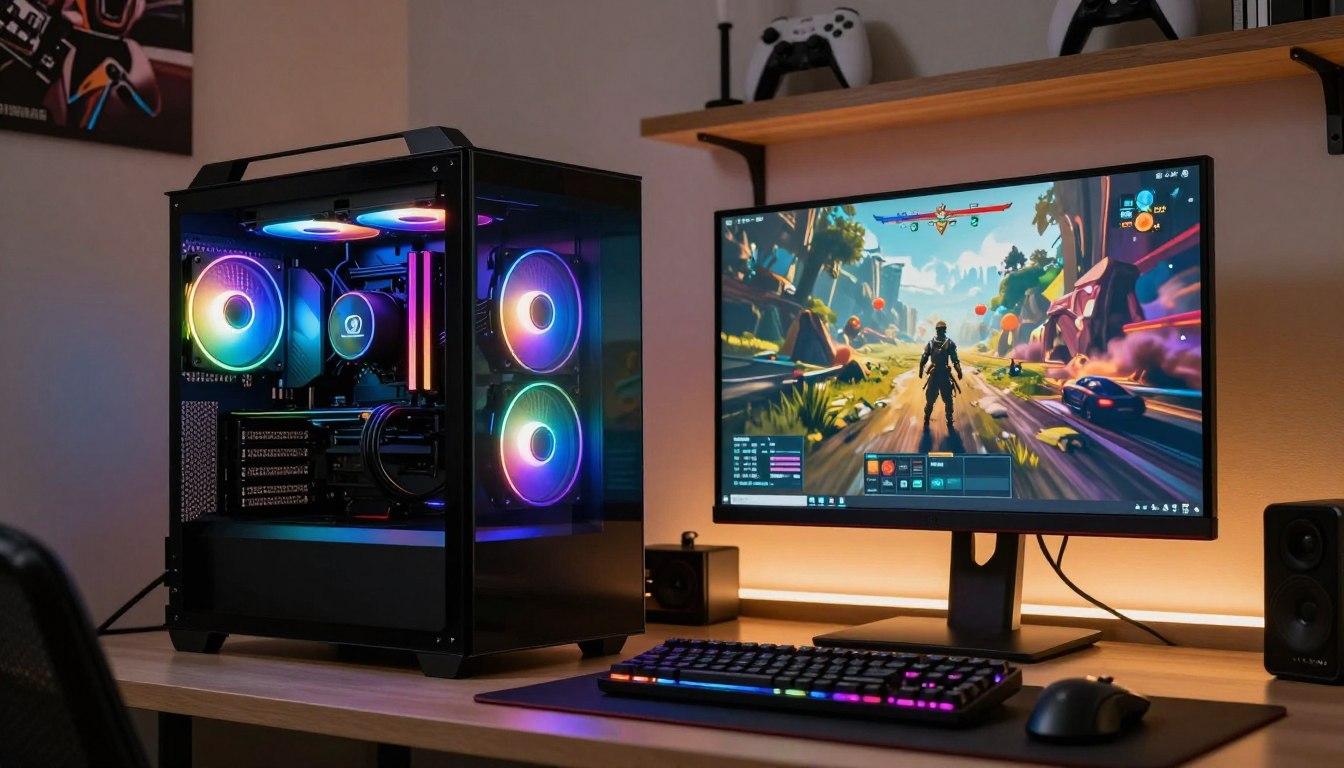
A desktop gaming PC needs a connected display to show local gameplay, but that display does not have to be a gaming monitor.
A desktop PC does not include a built-in display. Its motherboard, RAM, storage, power supply, cooling, case, and operating system support the computer, while the display presents its video output. A TV can fill that role if its input matches the PC’s output.
Refresh rate is the number of times a display updates its image each second, measured in hertz (Hz). The display shows the video signal, but it does not run or render the game itself.
Three common display options are:
- Standard monitor for general computer use and games.
- Gaming monitor for players who want speed-focused features.
- TV for a larger screen or couch-based setup.
Each can suit a different room and play style. Choose a gaming monitor only if its extra speed or display features solve a real limitation in your current setup.
Can a Regular Monitor Handle PC Gaming?
Yes, a regular monitor can handle PC gaming if its connections and performance meet the game’s needs. A compatible standard monitor can show gameplay from a Windows PC or Mac computer. Its category label alone cannot tell you how well it will perform.
Standard and gaming-focused displays share the same basic job: they receive video output and show an image. Their specifications can overlap, and a gaming label does not guarantee a particular level of performance. Check the specific model, not just the words on its box.
What standard and gaming-focused screens have in common
Both types can work with a Windows PC or Mac when their video outputs and inputs are compatible. Both may show games, documents, and video. A standard monitor can be entirely adequate for casual gameplay, especially if you already own one.
| Attribute | Standard monitor | Gaming monitor |
|---|---|---|
| Typical use | Office tasks, browsing, and video | Games plus general computer use |
| Motion and speed priorities | Often focused on everyday viewing | Often emphasizes fast motion and higher refresh |
| Extra image processing | May include basic picture modes | May include game modes and motion settings |
| Stand or ergonomic features | May offer tilt or basic height adjustment | May add height, swivel, or rotation adjustment |
Where gaming-focused monitors differ
Gaming monitors often put more emphasis on motion settings, image controls, and adjustable stands. Those extras are not exclusive to gaming models, though. Some general-purpose monitors have strong gaming performance, while some gaming-branded screens have modest specifications.
An older or slow standard monitor may limit smoothness or responsiveness even when the PC can produce more. That does not stop it from playing games; it simply means the screen may not show every advantage the PC can provide. Check the exact model’s specifications instead of assuming its category tells you how well it will play games.
How Much Does Refresh Rate Affect FPS?
A higher refresh rate can make motion look smoother, but it cannot raise the number of frames your PC renders. Refresh rate affects what you see, while frame rate describes the images produced by a game each second. The GPU must supply enough frames for a faster display to show its full benefit.
A standard monitor often refreshes at 60Hz. Gaming options commonly start around 100-120Hz for entry-level play, while many gamers choose 144-200Hz. Competitive models may reach 240Hz or 360Hz, but those rates do not improve every game or setup equally.
These practical tiers can help you narrow the choice:
- 60Hz: standard use, browsing, and casual gaming.
- 100-120Hz: entry-level gaming with smoother motion than 60Hz.
- 144Hz or higher: smoother fast-paced play when the PC keeps up.
High refresh rates matter most when your GPU can provide a matching frame rate. A monitor set to 144Hz may still show fewer new frames if the game runs below that level. The display does not make the GPU render more images per second.
For many gamers, moving from a 60Hz standard monitor to a faster screen makes quick movement easier to follow. Gains above 144Hz matter most to competitive players, and even then, the PC must keep up. Match the refresh rate to the frame rate your PC can sustain in the games you actually play.
What Do Response Time and Adaptive Sync Change?
Response time describes how quickly pixels change, while input lag describes how long an action takes to appear on screen. They measure different delays, so a low number for one does not guarantee a fast-feeling display. Pixel response time and input lag are not interchangeable specifications.
Slow pixel transitions can leave trailing shapes or ghosting behind moving objects. Many mid-to-upper-range gaming monitors list response times of 1-2ms, and under 5ms is acceptable for many players. General-purpose displays may list response times of 8ms or more.

Input lag is the delay between your button press and the on-screen response. It can be affected by the whole system, including the display’s processing. A low response-time number alone does not prove that input lag is low or that overall performance is good.
Variable refresh rate (VRR) synchronizes a display’s refresh with the GPU’s frame output. This can reduce tearing and stutter when frame rates change. NVIDIA G-SYNC and AMD FreeSync are adaptive sync technologies that use this approach, though support can differ by display and GPU.
Compare the listed specifications and look for real-world performance details, rather than choosing only by the smallest response-time figure. Check whether the monitor’s VRR support matches your GPU before paying extra for a sync feature.
Which Resolution Can Your GPU Support?
Choose resolution by balancing image detail against the frame rate your GPU can maintain. Higher resolution sharpens the image, but it also asks the graphics processing unit to render more pixels. 4K has four times as many pixels as 1080p and needs more GPU power for demanding games.
Full HD, QHD, and 4K UHD are common monitor resolutions. The right target depends on both the visual detail you want and how smoothly your PC can run your games at that setting.
| Resolution | Pixel dimensions | Typical hardware demand |
|---|---|---|
| Full HD | 1920×1080 | Lowest demand of these three options |
| QHD | 2560×1440 | More demand than Full HD |
| 4K UHD | 3840×2160 | Highest demand, especially in demanding games |
Moving to a higher resolution can make small details and text look sharper. The trade-off is a heavier workload for the GPU, which may reduce the frame rate unless the graphics hardware can handle it.
A monitor’s maximum resolution describes what the display can show, not what your PC can run smoothly. A PC might output a desktop at 4K while struggling to maintain the frame rate you want in a demanding game. If your GPU already struggles at a resolution, a higher-resolution monitor will not fix its frame-rate limits.
Which Panel and Screen Size Fit Your Games?
The best fit for most mixed-use players is a 27-inch QHD IPS screen, while competitive and immersion-focused players may prefer different sizes or panels. That middle ground balances a roomy view with broad viewing angles. Choose panel and size around the games you play and the space you have.
Panel technology shapes contrast, color, and viewing angles. Screen size affects how much of your desk the display occupies and how much of the game fills your view. These choices are personal, but each panel has clear strengths and trade-offs.
How IPS, TN, VA and OLED panels differ
TN panels prioritize speed but can have weaker color and viewing angles. IPS panels offer accurate color and wide viewing angles. VA panels provide strong contrast and deep blacks, while OLED panels combine deep blacks and high contrast with very fast response.
| Panel type | Main strength | Trade-off or best fit |
|---|---|---|
| TN | Speed-focused performance | Weaker color and viewing angles |
| IPS | Color accuracy and wide viewing angles | Strong all-around fit for mixed use |
| VA | Strong contrast and deep blacks | Good fit for contrast-rich, immersive games |
| OLED | Deep blacks, high contrast, very fast response | Premium cost may not suit every budget |
Which screen size suits your play style
A 24-25-inch display keeps the action within a compact view, which often suits competitive setups. At 27 inches, you get a flexible middle ground for mixed gaming and everyday tasks. A 32-inch display or ultrawide screen gives games a more immersive view, but it needs more desk space.
Also consider your room and viewing distance. A large screen may feel overwhelming if it sits close to your face, while an ultrawide monitor needs enough desk width to fit comfortably. The right size is the one you can view without constantly shifting your head.
Best gaming monitor setups for common play styles
For competitive play, consider a 24-25-inch Full HD screen with a high refresh rate. A 27-inch QHD IPS display is a balanced gaming monitor setup for mixed use. For immersive games, a larger VA or OLED display can emphasize contrast and fill more of your view.
OLED’s premium cost can change the decision, and the needs of your room matter too. Measure your desk and viewing distance before choosing a large or ultrawide screen.
Can You Use a Monitor Without a PC?
A monitor can display a game without a PC if a console or another compatible device supplies the game. The monitor itself is only an output device, so it needs a source device and a matching input. A monitor does not run games by itself.
A console, laptop, or compatible phone or tablet can act as the source if it supports video output. The monitor must have an input that matches, either directly or through a suitable adapter. HDMI and DisplayPort capabilities also need to match your target resolution and refresh rate.
Connect a console or laptop as the source
DisplayPort 1.4 is a common PC display connection. HDMI 2.0 supports 4K at 60Hz, while HDMI 2.1 supports 4K at 120Hz. The source and display both need to support the desired mode for that signal to work.
For console VRR, the PS5 requires HDMI 2.1, while HDMI 2.0 is sufficient for VRR on Xbox consoles. A cable or adapter cannot add a feature that the source or monitor does not support.
When a phone or tablet can replace a PC
A phone or tablet can show games on a monitor if the device supports video output and the display accepts its signal. Compatibility varies by device, so check the output method before choosing an adapter. Some devices mirror a screen, while others may offer a desktop-style view.
A monitor does not need a PC specifically, but it does need a source device to show anything. Confirm the source device’s video output and the monitor’s input before choosing a cable or adapter.
What Do Roblox and Fortnite Need to Run?
Roblox or Fortnite runs on the connected device, not on the monitor. The monitor only displays the output from a compatible PC, console, or other supported device. Roblox needs a device that meets its requirements before the screen can show the game.
Roblox lists minimum requirements for a PC, including its operating system, memory, graphics support, and storage. These are minimums for the game to run, not a promise of a particular image quality or smoothness. A more capable device may provide a better experience.
The PC requirements Roblox lists
Roblox lists these minimum PC specifications:
- 1 GB of RAM and a processor with a clock speed of 1.6 GHz or better.
- DirectX 10 or higher feature-level support for graphics.
- Windows 10 as the minimum operating system.
- Shader Model version 4.0.
- 20 MB of free disk space.

These are the Roblox minimum requirements, and they describe a compatible PC rather than a monitor. A connected display cannot make an unsupported computer run the game. The PC supplies the processing power, and the monitor shows what it produces.
Fortnite depends on the device running it
A PC is not the only way to play Roblox or Fortnite on a monitor. A console or mobile device can work when its platform runs the game and supports video output to the screen. The monitor does not determine which version of a game the source device can run.
Fortnite requirements depend on the platform running it, so do not assume that PC specifications apply to a console or phone. Check the current game requirements for the exact PC, console, or mobile device you plan to use.
How Much Should You Spend on a Gaming PC?
A $1,000 budget can cover an entry-level 1080p gaming PC build, while $600 is a tighter budget that calls for compromises. Those figures are examples, not universal prices for every store or configuration. Cost depends on the parts, especially the GPU, and whether peripherals are included.
Xidax’s 2026 guide lists three build tiers with different intended uses. The ranges reflect that guide’s configurations, not a fixed market price for every gaming PC. Part choices and the included equipment affect the total.
The Xidax 2026 entry-level build is listed at $700-$1,000 for 1080p gaming and light workloads. Its mid-range build is listed at $1,300-$1,900 for 1440p gaming, streaming, and creator workloads. The high-end tier is $2,000-$3,500+ for 4K gaming and maximum ray-tracing settings.
Xidax lists 16GB of RAM as the minimum and 32GB as recommended for a 2026 gaming PC build. DDR5 is the standard memory type in that guide. A 500GB or 1TB NVMe SSD is presented as a budget-build storage option.
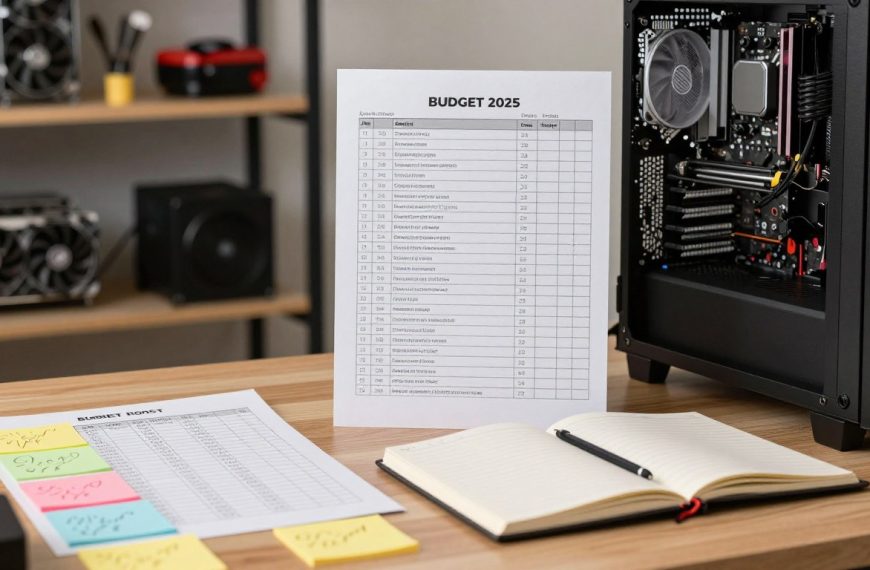
A $600 budget falls below the listed entry-level range, so you may need to accept compromises in parts or performance. It may also need to cover a monitor, keyboard, mouse, or other peripherals. Before setting your total, decide whether the budget includes those items.
Spending on a 4K display is a poor match if the PC cannot drive your games at the settings you want. A less costly screen at a resolution your GPU can handle may support a better gaming experience. Set the PC’s performance target before allocating money to a high-resolution display.
Can a Gaming Monitor Also Work for Work and TV?
A gaming monitor can handle everyday work as well as games, but color-critical creative work may call for a different display. Documents, email, and video calls do not need gaming-focused speed features. Photo, video, and design work benefit more from accurate color and careful calibration.
For everyday tasks, gaming monitors can serve as a useful second screen or a shared work-and-play display. A budget-friendly model may offer a 1000:1 contrast ratio, which can affect how deep dark areas look. Check picture quality as well as speed if you spend long hours working.
Professional photo editing, video editing, and design rely on dependable color. A fast refresh rate cannot replace accurate color or calibration. If clients or print work depend on color choices, favor a display built for that need over gaming features.
Some monitor users also miss features common on TVs, such as built-in speakers or a remote. A TV can serve as a PC display when it has a compatible input, but its size may be awkward at a desk. Desk space and viewing distance can make a TV less convenient for close-up work.
Think about how you divide the screen’s time between work and entertainment. Compare the display’s color accuracy and built-in features with your actual work and entertainment needs.
How to Match a Monitor to Your Setup
Start with the resolution and frame rate your hardware can sustain, then judge other features against your games and budget. Hardware performance comes first because a screen cannot make the GPU produce more frames. Confirm that the monitor’s preferred mode works with your PC or console.
Choose a monitor mode your connected device can actually output, then weigh its extra features against your games and budget.
A short checklist keeps the decision tied to your real setup:
- GPU performance at the resolution you plan to use.
- Refresh rate suited to the frame rates you expect.
- VRR compatibility with your GPU or console.
- Desk space and viewing distance for the screen size.
- HDR, brightness, and color specifications for your room and games.
HDR labels alone do not guarantee a strong image. For HDR, look for at least 400 nits of peak brightness, with 600 nits a preferred target. A room with strong light may make brightness especially important.
Color details add useful context. An 8-bit panel can display around 16 million colors, while a 10-bit panel can display over 1 billion. DCI-P3 is a wide color gamut named in display specifications, so check how much of it a screen supports.
Also compare the monitor’s listed modes with the output your PC or console can provide. A feature only helps when the source and display can use it together. Before buying, confirm that the display’s preferred mode works with the device you plan to connect.
Conclusion
You do not need a gaming monitor to play on a gaming PC, but the right display can make its performance easier to see. A connected display is essential for visible local gameplay, while the gaming label is optional.
Choose a gaming-focused screen when smoother motion or faster response matters to you. A standard monitor or TV is a sensible choice when its current performance suits your games and hardware.
Your next step is to compare the output your PC or console can provide with the display’s resolution and refresh rate. That check can rule out mismatched options before you spend money. Check your device’s output and the games you play before choosing between a standard screen, gaming monitor or TV.
FAQ
Can a PC run without a monitor?
Yes, a PC can run without a connected monitor, but you cannot see local gameplay on a screen until you connect a display. The computer can still start and perform tasks without one. For gaming, connect a monitor or TV with a compatible video input so you can view the game and control it from the PC.
Is $1000 enough for a gaming PC?
Yes, $1,000 can fit an entry-level 1080p gaming PC build in the listed 2026 tier. The parts determine how well that PC runs particular games, and the GPU has a major effect on gaming performance. If the budget also needs to cover a monitor, keyboard, mouse, or other peripherals, less money remains for the computer itself.
Can a regular monitor be used for gaming?
Yes, a regular monitor can be used for gaming if its resolution, refresh rate, response, and connections suit your PC and games. An older or slower model may limit smoothness, but it can still display gameplay. Check the exact model’s specifications instead of relying on a standard or gaming label to judge performance.
Does a gaming PC need a gaming monitor?
No, a gaming PC does not need a gaming monitor. It needs a connected display, and a compatible standard monitor or TV can show its video output. A gaming-focused display is worth considering when its speed or other features address a real limit in your current setup, rather than simply because you own a gaming PC.
Can I just use a monitor by itself?
No, a monitor cannot run a game by itself because it has no game-running processor. It needs a PC, console, or other compatible source device to produce the game and send video. Check that the source and display have matching video connections, since an adapter cannot add a feature that either device lacks.
Can a TV be used as a computer monitor?
Yes, a TV can be used as a computer monitor if the TV and PC have compatible video connections. For gaming, check the TV’s supported resolution, refresh rate, and input lag, since these affect the viewing experience. Also consider whether the screen size and your viewing distance feel comfortable at a desk.
What are the disadvantages of using a monitor?
A monitor may lack built-in speakers or a remote, features some TV users expect. A compact screen can also feel less immersive than a TV when you play games from a couch. These trade-offs matter less if you use headphones, sit close to the screen, or prefer a desk setup.
Is a monitor basically a laptop?
No, a monitor is a display, while a laptop is a computer with its own processor, memory, and operating system. A monitor shows video from a connected source but does not run games or applications on its own. A laptop can connect to a separate monitor when its video output matches the display’s input.

 By
By
 By
By